Feature: Admin Usage and Metrics
Use this page when you need platform-level storage, traffic, or usage analytics from Admin.
When to use
Use Admin > Usage & Metrics to understand endpoint-wide capacity and usage signals before investigating a tenant or bucket.
Prerequisites
ui_adminorui_superadminaccess.- Endpoint metrics or usage collection is enabled for the selected backend.
- Scheduler or CronJob collection is running when you expect historical data.
Steps
- Open Admin > Usage & Metrics.
- Select the relevant endpoint or tab when the page offers multiple metric families.
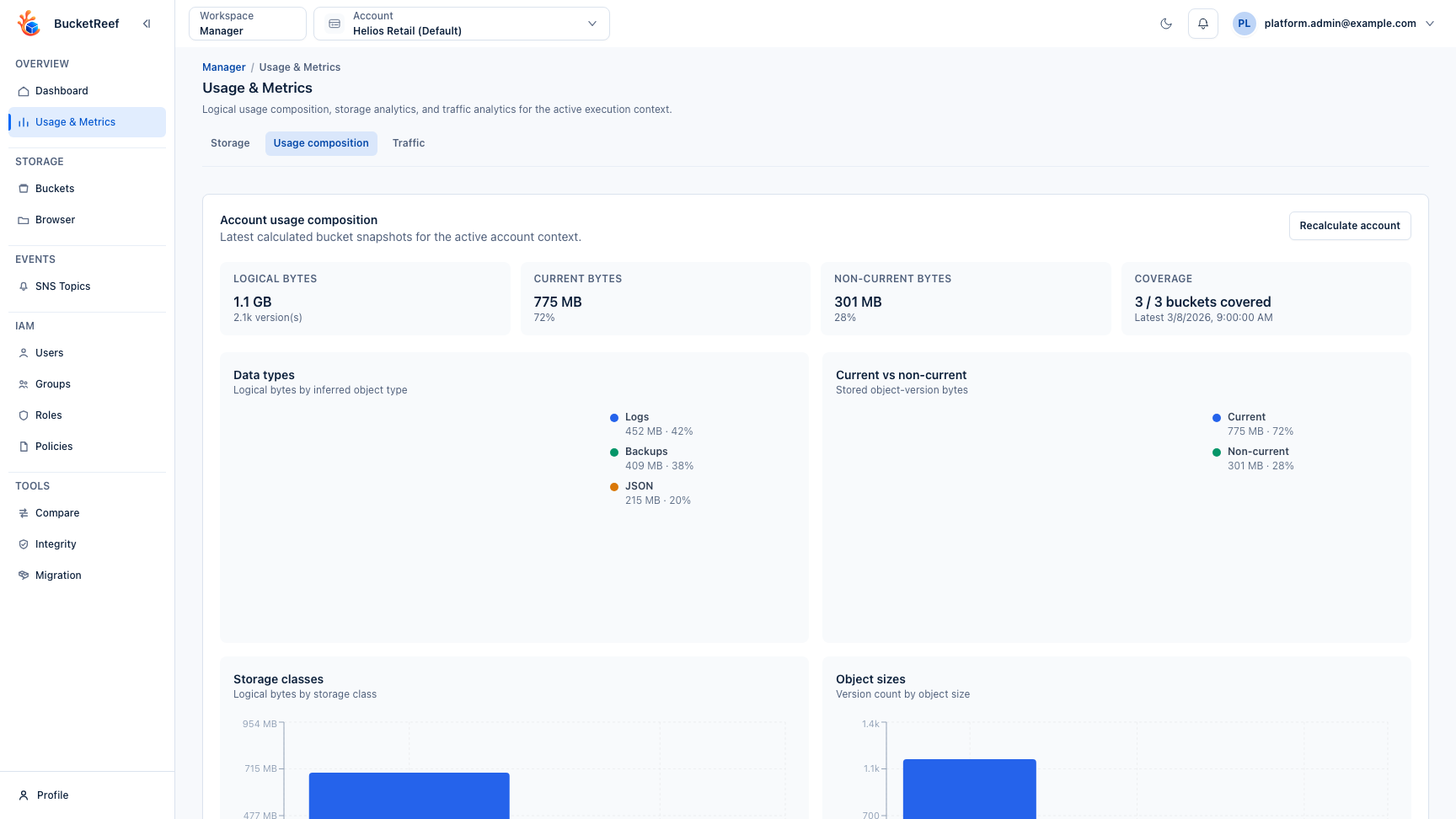
- Compare storage totals, usage composition, usage history, and traffic charts.
- If a number is stale, check the latest usage-history or metrics collection time.
- Use Manager or Ceph Admin for bucket/account-level drilldown when platform totals point to a narrower scope.
Expected result
You can tell whether a storage issue is platform-wide, endpoint-specific, or limited to a tenant/bucket view.
You are done when
You can report the metric name, endpoint, visible time range, last collection time, and next page to inspect.
If you do not see this action
Check endpoint_status_enabled, usage-history settings, endpoint capability, and your Admin role before changing storage permissions.
Limits / feature flags
Note
Metrics are observability data. They do not grant access to objects, buckets, accounts, or Portal Storage Spaces.
Related pages
- Feature: Usage History in Admin
- Feature: Bucket usage stats
- Ops / Observability
- Ops / Quota monitoring and history
Visual example
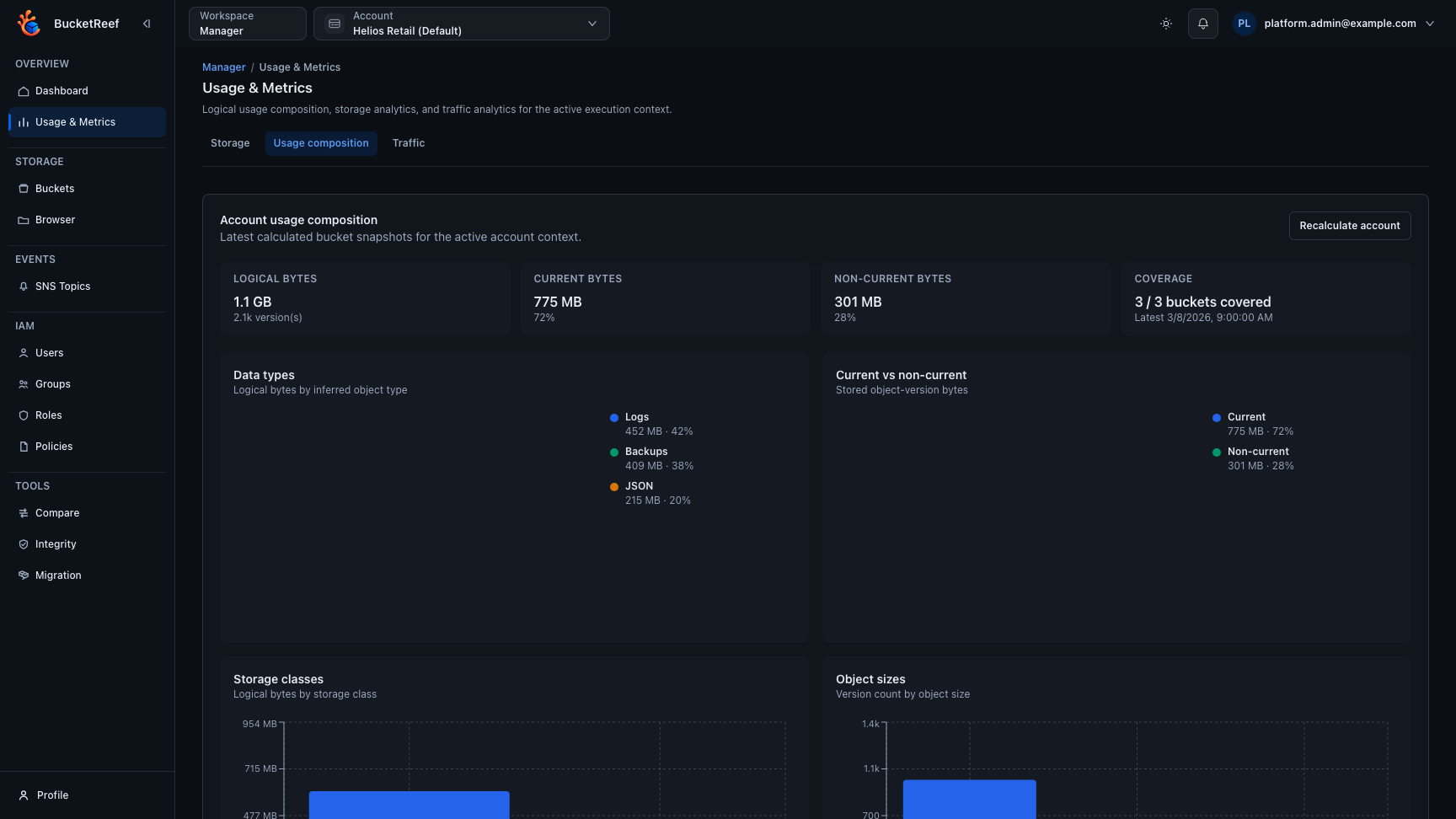
This page reuses the bucket usage stats screenshot because the Admin page follows the same usage-analysis vocabulary at platform scope.