Start Here
When to use
Use this page when you log in for the first time and need to understand where to work.
Prerequisites
- You can sign in to the UI.
- Your account has at least one workspace enabled.
Steps
- Sign in and let the UI redirect you to your default workspace.
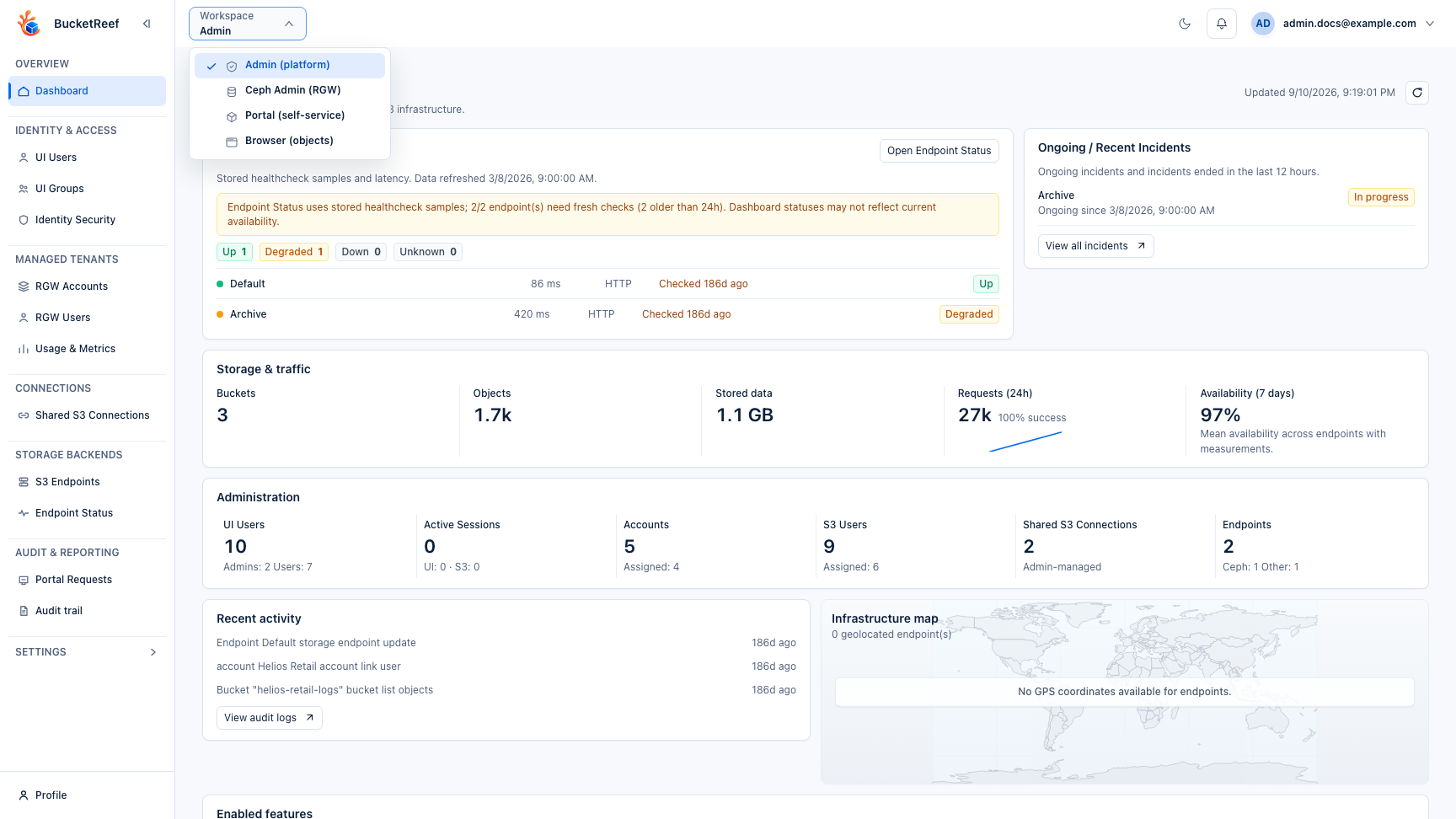
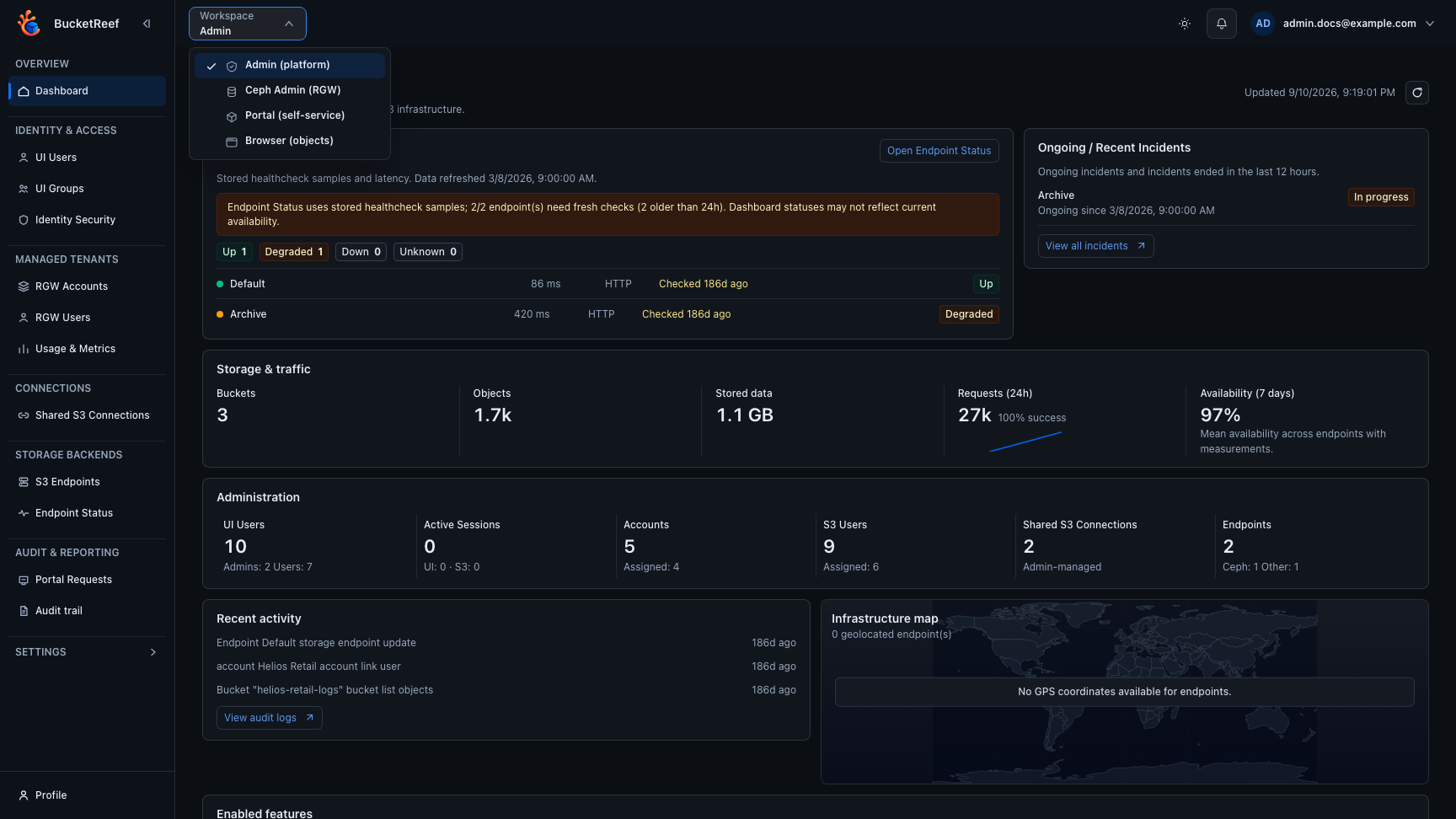
- Confirm available workspaces in the global topbar workspace selector.
- Pick the workspace matching your task:
Admin: platform setup and governance.Manager: bucket and IAM administration.Portal: spaces, files, collaborators, and external-tool credentials on explicitly assigned accounts.Browser: object operations.Ceph Admin: Ceph cluster-level tasks.Storage Ops: cross-context bucket operations.- If you see account, context, or endpoint selectors in the topbar, select the right execution context before acting.
- If compact selector tags help your workflow, enable Show selector tags from User profile to display color-coded
Standardtags directly in the top selectors.Administrativetags stay limited to management lists and edit surfaces.
Choose the right workspace
| Your goal | Workspace | First action | Ask an admin when... |
|---|---|---|---|
| Browse, upload, download, preview, or restore files | Browser | Select the right account or connection, then open the bucket. | The workspace is missing, the bucket is dimmed, or an action is disabled. |
| Work in an assigned self-service area | Portal | Select your Portal account, then open Spaces. | You cannot see the expected space or need a new collaborator/external-tool policy. |
| Configure buckets, IAM, topics, or Manager tools | Manager | Select the account context, then open the relevant section. | The account context is missing or a tool is hidden. |
| Configure users, endpoints, feature flags, audit, or billing | Admin | Open Storage Backends, Platform, or Settings. | You do not have ui_admin or ui_superadmin. |
| Work on Ceph RGW accounts, users, or cluster-wide buckets | Ceph Admin | Select the endpoint before taking action. | You do not have the Ceph Admin entitlement. |
| Run cross-context bucket operations | Storage Ops | Open Buckets, then filter by context and endpoint. | Your target context is not listed. |
Understand the topbar selectors
- Workspace decides which product surface you are using.
- Account / context decides which credentials execute S3 or IAM actions.
- Endpoint appears on Ceph Admin and endpoint-scoped views. It decides which backend receives the request.
If an action is missing, disabled, or returns AccessDenied, first check the selected workspace and context. The UI does not widen storage permissions. Native Browser and Manager actions follow IAM/S3, while Portal spaces follow the spaces and collaborator grants configured in Portal.
First login checklist: storage user
- Sign in and confirm whether Portal or Browser is available.
- In Portal, open Spaces and choose the space assigned to your work.
- In Browser, select the expected account or connection, then open a bucket.
- Upload and download a small test object when your role allows it.
- If access is missing, report the workspace, account/context, bucket or space, and exact error text.
First login checklist: storage administrator
- Open Admin and verify the storage endpoint health.
- Confirm the first account or connection is visible in the topbar context selector.
- Open Manager, create or inspect a bucket, and check IAM access when available.
- Open Browser from the same context to validate object-level access.
- Review audit, usage, quota, or endpoint status pages before handing the workspace to users.
Expected result
You know which workspace to use and can start from the correct context.
Limits / feature flags
Note
Workspace visibility depends on role, account links, and feature flags (manager_enabled, portal_enabled, browser_enabled, ceph_admin_enabled, storage_ops_enabled). Portal visibility also requires an explicit portal_user or portal_manager account role.
Related pages
- Common tasks for storage users
- Common tasks for storage administrators
- Workspace: Portal
- User profile
- Troubleshooting
What to read next
- For file work, continue with Workspace: Browser or Feature: Object operations in Browser.
- For self-service storage, continue with Workspace: Portal.
- For bucket and IAM administration, continue with Workspace: Manager.
- For platform setup or team handover, continue with Storage admin runbook and Workspace: Admin.
- If a term is unclear, use Glossary and search tips.
Visual example