Portal: Files
Use this page when you work with files inside a Portal space.
Before you start
- Open the right project and space.
- Your space role allows the action you want to perform.
- The space is active, not archived.
Main tasks
| Task | Where | Notes |
|---|---|---|
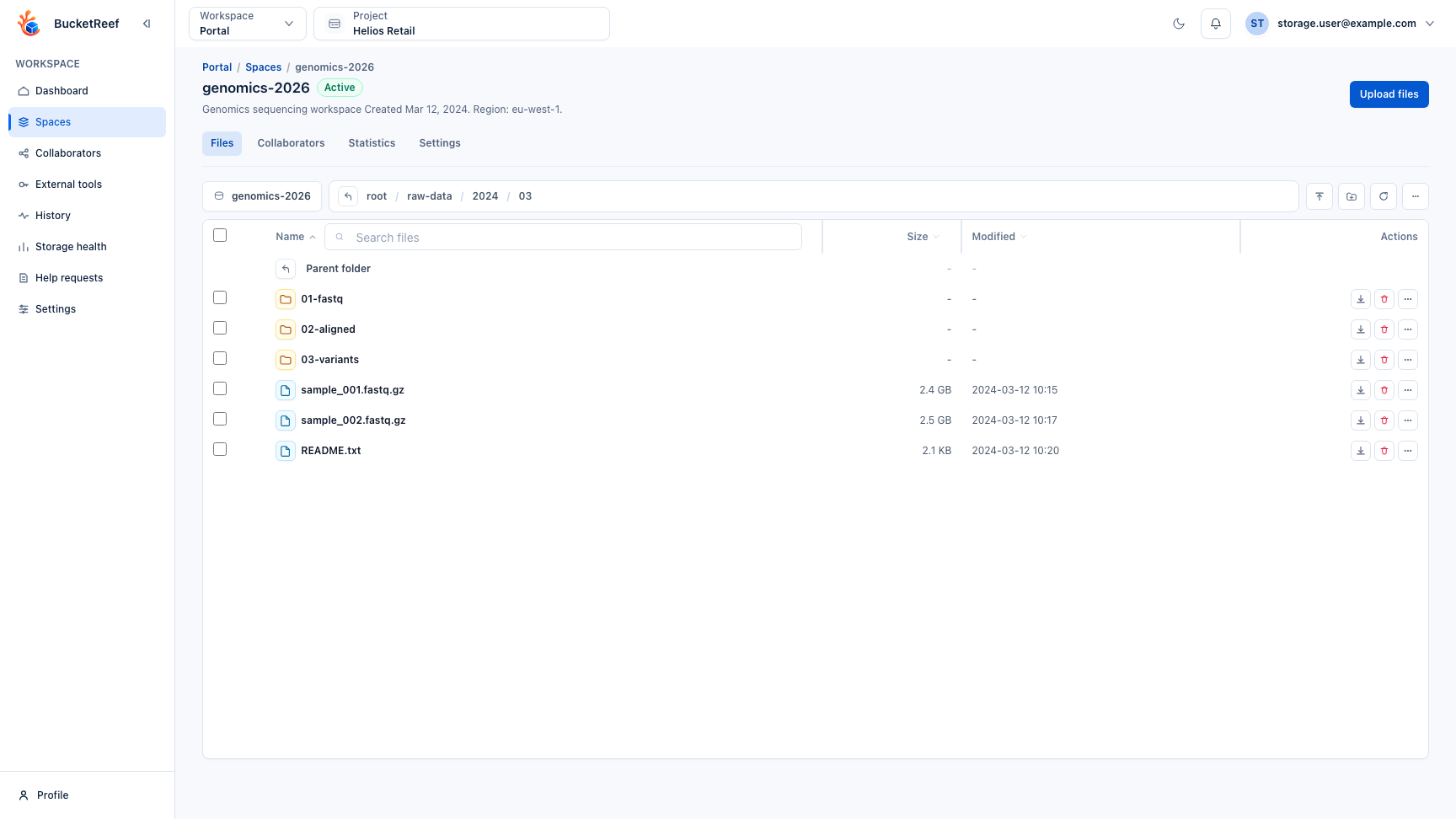
| Browse folders | Space file list | Breadcrumbs and folder rows keep navigation scoped to the selected space. |
| Upload files | Object list action bar | Available for Editor, Owner, and Manager roles when storage permissions allow writes. |
| Preview a file | File detail > Preview | Supports images, video, audio, PDF, and text files up to 50 MiB. Text previews show at most the first 64 KiB. |
| Review or restore an older version | File detail > History | Available when file history is enabled for the space. Restoring creates a new current version and keeps the existing history. |
| Download files | Object row or detail page | Available when your role and storage permissions allow reads. |
| Return to the containing folder | File detail > Back to files | Returns to the file list while preserving the file's parent folder. |
| Share a file outside the workspace | File detail > Sharing | Open the file, use Share or Set up public link to reach the sharing panel, create the link only when anyone with the link should have access, then use Copy link from the link row. |
| Create folders | Object list action bar | Creates a prefix marker or equivalent folder representation. |
| Delete files | Object row actions | Available only for roles that can write/delete. When file history is enabled, deletion moves the file to the space trash. |
| Show deleted files | Space file list > Show deleted files | Available when file history is enabled or suspended. Deleted files and historical folders appear in the current folder only; there is no separate trash index or background scan. |
| Restore a deleted file | Deleted file row > Restore | Restores the latest recoverable version to its original folder. Previous history remains available. |
| Restore a folder | Open folder > Restore deleted files in this folder | Restores deleted files under that folder with progress and cancellation. This action is intentionally unavailable at the space root. |
| Inspect safe details | File detail > Details | Shows size, type, last update, and location first. Storage class and encryption stay under Technical details. |
You are done when
The file list reflects the new upload, folder, deletion, download-ready file, or public-link state without leaving the space.
If an action is hidden
Viewer spaces hide upload, folder creation, delete, and restore actions. They can still review file history and show deleted files. Archived spaces hide file browsing entirely. Technical details such as tags, raw headers, retention, and diagnostics belong in Browser or Manager.
Files larger than 50 MiB, files whose size cannot be determined, and unsupported formats are not loaded into memory for preview. Download the file to open it with a local application instead.
The History tab appears on a file when history is available. Deleted files remain recoverable while their history is retained. Use Show deleted files in the normal file browser to see them without leaving the current folder. Historical folders remain navigable even when they no longer contain active files. Results load page by page directly from storage; if more history remains, use Continue loading deleted files. A history cleanup can permanently remove these recovery points, so restore anything needed before an owner or manager runs that cleanup.
Folder restoration opens a focused page with the exact folder path, progress and a result summary. Wait for completion or choose Stop before leaving; files already restored remain available. Failed files and any limit on the visible failure details are shown with the result. A failed stream can be retried explicitly from the same folder.
Related pages
Visual example