Feature: Ceph Access Keys in Manager
Use this page when a storage administrator needs to create, disable, enable, or delete Ceph RGW access keys for a managed S3 User context from Manager.
When to use
Use Manager > Ceph > Access keys for a managed or imported RGW S3 user whose keys are intentionally delegated to Manager operators.
This is different from:
- Portal > Access keys, which creates user-managed external keys for Portal users.
- Admin > Settings > Key Rotation, which rotates backend-managed platform credentials.
- Manager IAM user key pages, which manage IAM access keys for IAM users.
Prerequisites
- Access to
/manager. - The selected Manager context is a managed S3 User context, not an RGW account or S3 connection.
manager_ceph_s3_user_keys_enabled=truein Manager settings.- The UI user has effective direct or group access to the selected S3 User context.
- The S3 User record has
allow_access_key_management=true. - The endpoint is a Ceph-compatible endpoint with Admin Ops credentials available.
Steps
- Open
/managerand select the intended S3 User context. - Open Ceph > Access keys.
- Review the current key list and search by access key id or status when needed.
- Select New key only when the caller is ready to store the generated secret. The secret is shown once.
- Select Create my private access to have BucketReef create a distinct RGW
User key and private connection without transmitting the secret to the
browser. This separate workflow requires the UI right
can_provision_managed_private_connectionsand the S3 User opt-inallow_managed_private_connection_provisioning; it does not useallow_access_key_management. The resulting private connection is available in Browser by default. Open Advanced configuration only when you need to change its Browser/Manager availability. - Disable a key before deleting it when you need a reversible validation step.
- Delete unused keys only after confirming no external workflow still depends on them.
- Review the audit trail for create, status-change, provisioning, cleanup, or delete actions.
Expected result
The S3 User access key inventory matches the intended external-client access state, and every mutating action is auditable from the Manager scope.
You are done when
The intended key is present, disabled, enabled, or deleted, and a separate S3 client check confirms the expected storage behavior.
If you do not see this action
Check the selected Manager context first. The page is available only for S3 User
contexts. Then check the global Manager setting, the effective S3 User context
assignment, the S3 User
allow_access_key_management flag, endpoint provider, and Ceph Admin Ops
credentials.
Limits / feature flags
Warning
This page manages RGW S3 User access keys. Treat generated secrets like production credentials. Do not paste them into tickets, screenshots, logs, or shared chat.
Note
The UI-managed key marked KLO is locked. It cannot be disabled or deleted
from this page.
Note
A key marked Private access belongs to a server-managed private connection. It cannot be disabled or deleted from this key inventory. Open Profile > Private S3 connections and delete the linked connection so the server can clean up the remote key and keep durable remediation state if cleanup fails.
Note
This feature does not grant storage permission by itself. The resulting key still follows RGW/S3 permissions for the underlying S3 User.
Related pages
- Workspace: Manager
- Feature: IAM
- Feature: Key Rotation in Admin
- Feature availability
- Ops / Ceph RGW backend notes
Visual example
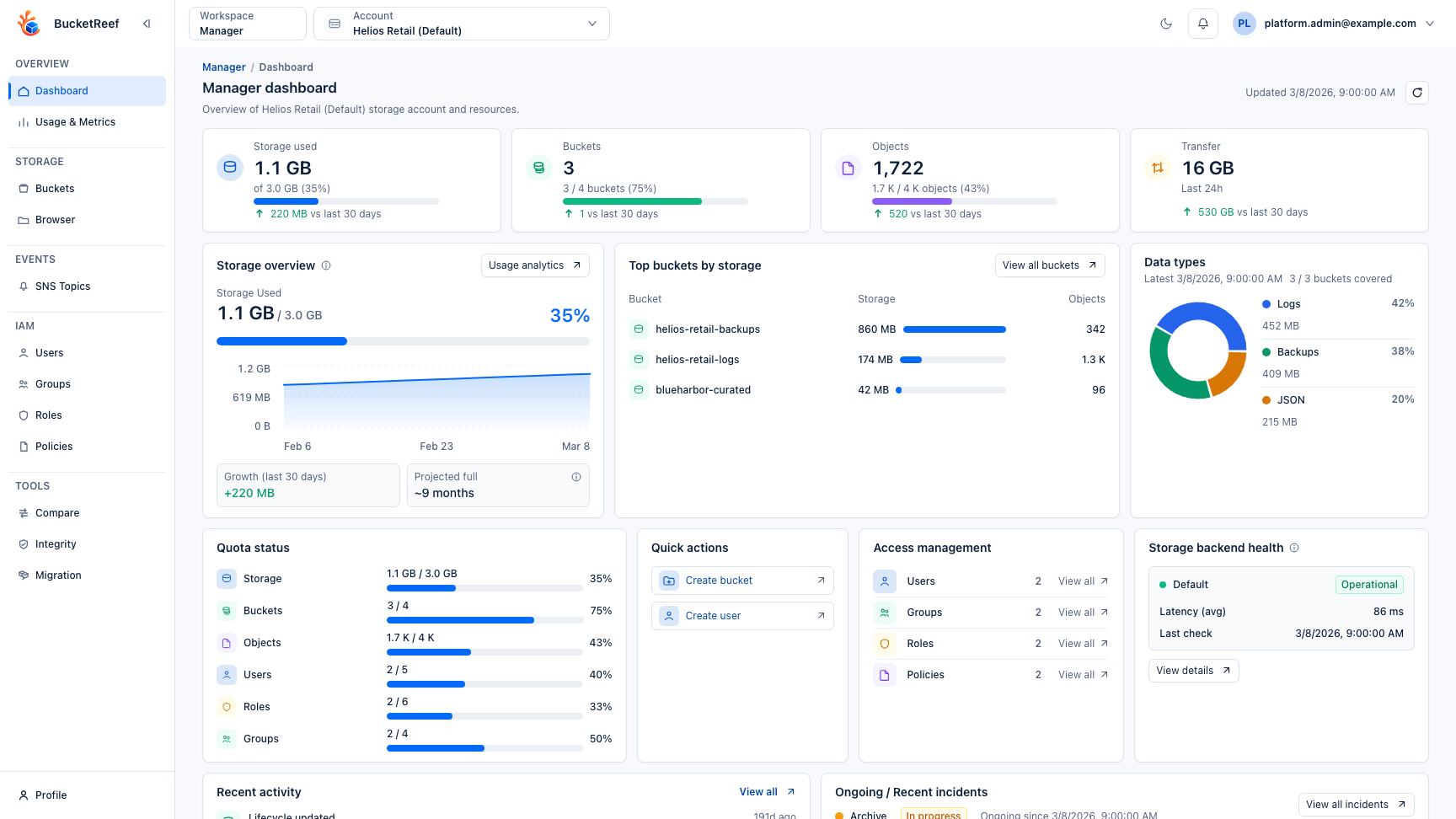
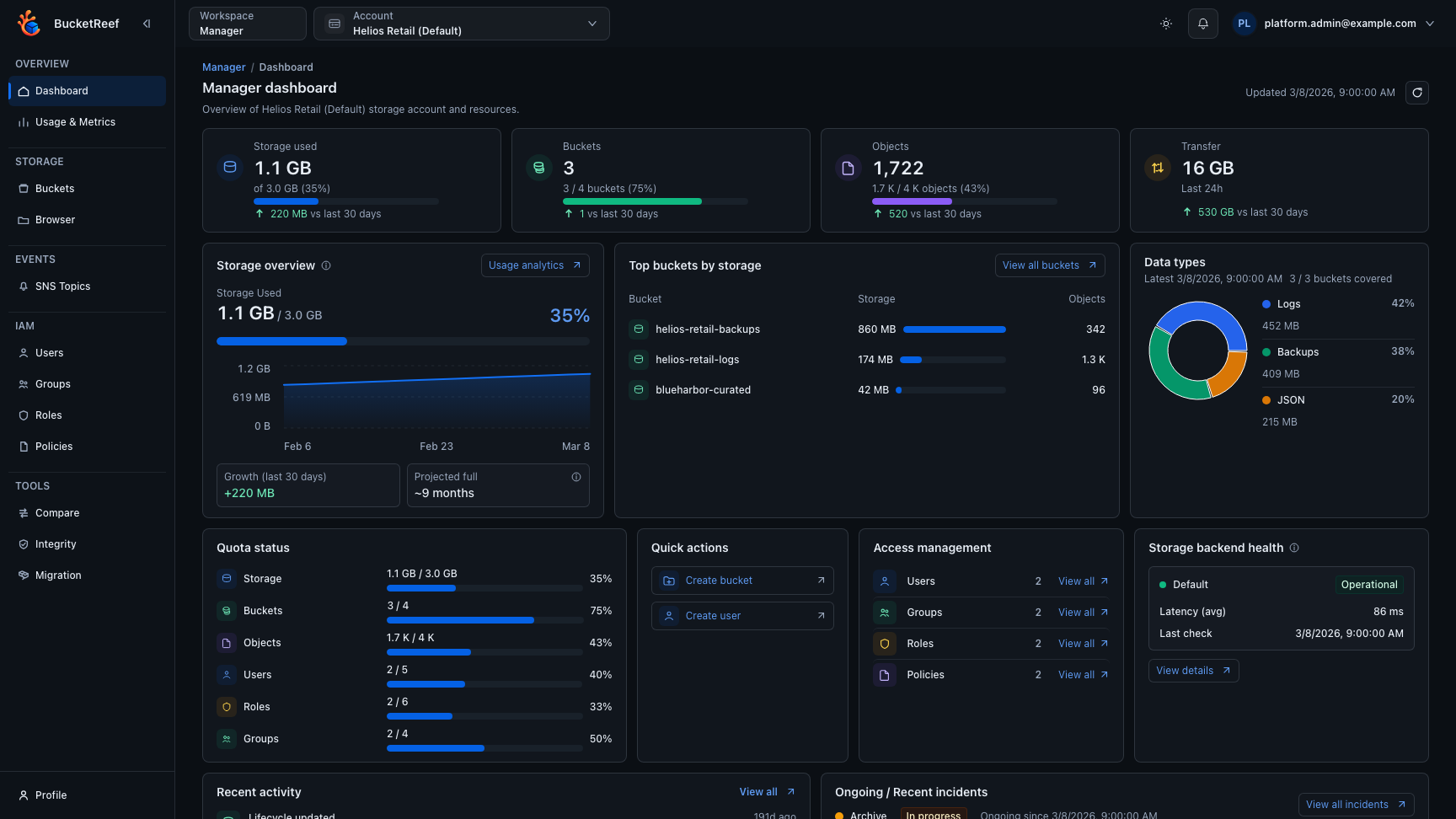
This page reuses the Manager workspace screenshot because Ceph access keys are a Manager context tool, and the important first step is selecting the correct execution context.