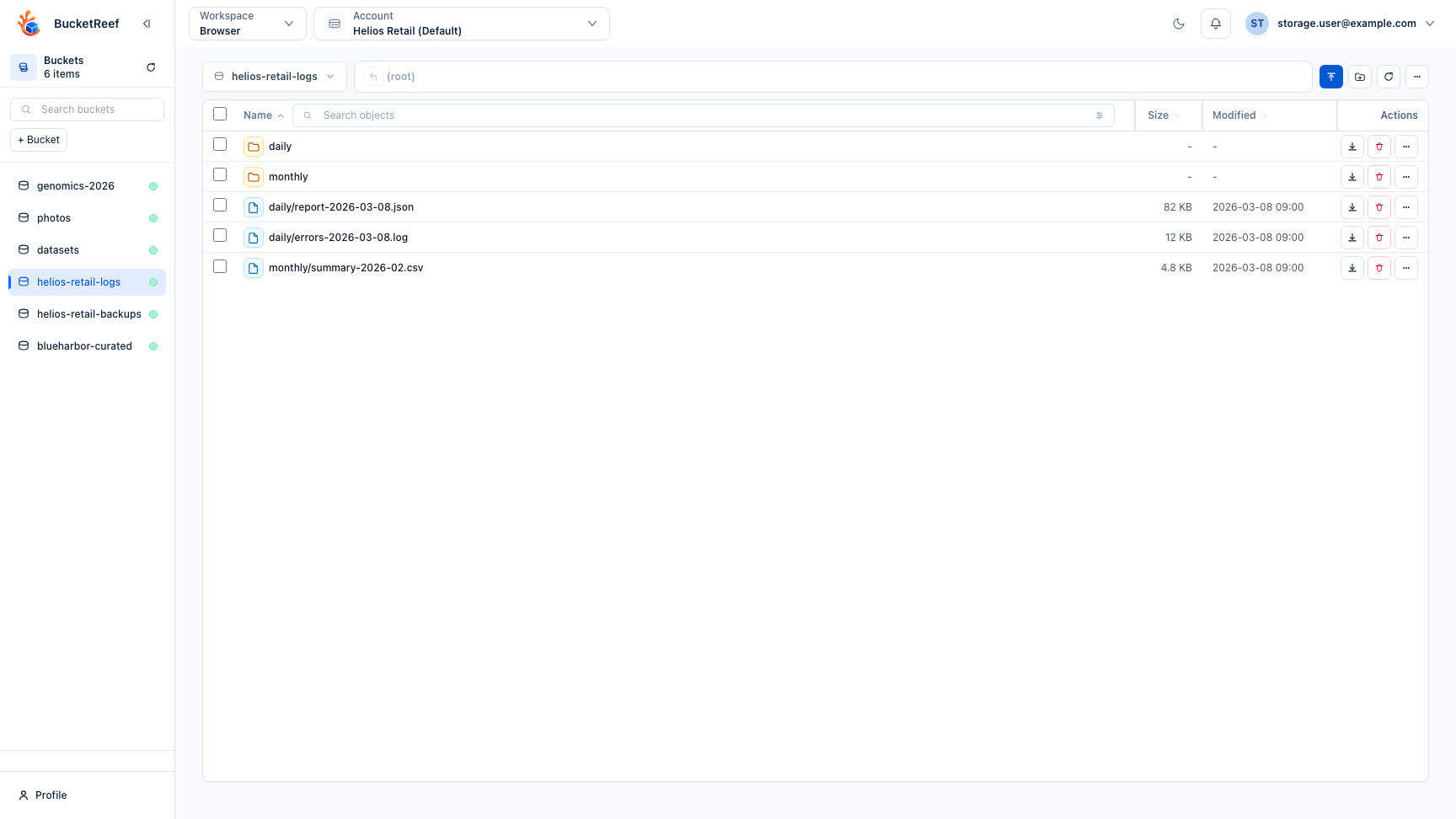
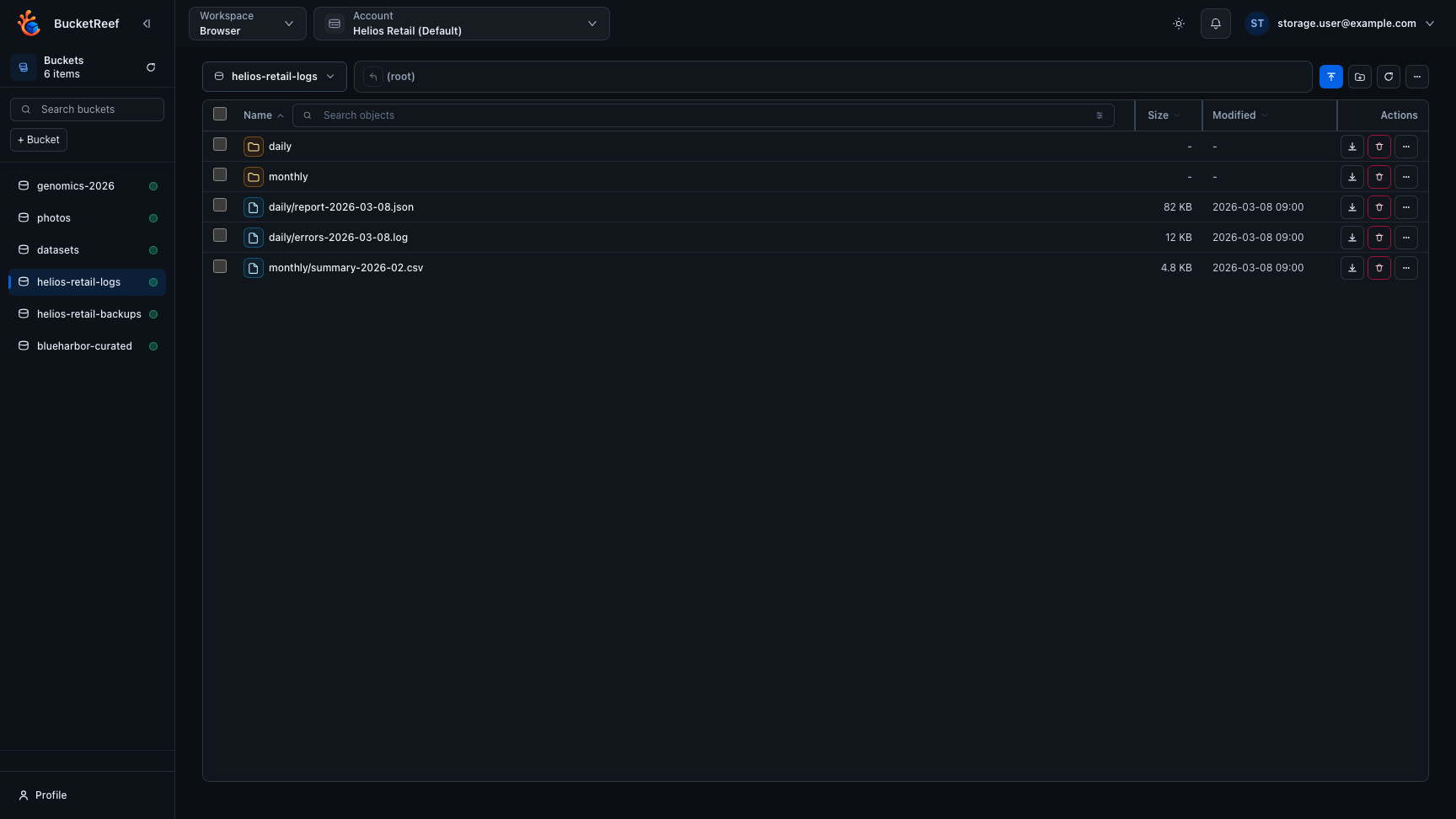
Workspace: Browser
When to use
Use Browser for direct bucket/object operations.
Prerequisites
- Browser feature enabled.
- At least one active, unexpired private S3 connection that you own and that has Browser access enabled, or a Portal project whose Browser workspace access is enabled by an administrator.
Steps
- Open
/browser. - Select a private connection or an enabled Portal project in the top selector.
- The selected context is recorded in
?ctx=and remains independent in each open tab. - If you enabled Show selector tags from User profile, compact color-coded
Standardcontext and endpoint tags are shown directly in the selector.Administrativetags remain limited to management surfaces. - Navigate buckets and prefixes.
- Use the workspace sidebar to search and switch buckets directly from the workspace.
- The object list starts in Compact view with the Folders panel hidden, so it remains usable in a small window and leaves maximum room for objects.
- Open More > Panels > Folders when a tree is useful. Every
/browseruser can enable it, and folder data is loaded only while the panel is open. - Perform object actions from the most appropriate surface:
- Click anywhere on a row or mobile card, outside its interactive controls,
to open the primary destination: folders navigate, files open on
Previeweven when no inline preview is available, and deleted objects openVersions/History. - Use the checkbox only for selection and bulk actions; Shift-clicking a
checkbox extends the current selection. Desktop replaces the right side of
the stable context bar with selection actions without moving the object
list; mobile shows a safe-area action bar with
Open,Download, andMorewhen applicable. - Right-click or use
Morefor all secondary actions. On mobile,Moreopens an accessible bottom sheet and explains temporarily disabled actions. While a selection is active, the action-barMoremenu stays focused on secondary actions for that selection; clear the selection to return to path and Browser settings. - Open an object to display its contextual details drawer. It overlays the right side without resizing the list on desktop and becomes full-screen on narrow windows. Opening another object replaces its contents without changing row selection.
- Perform uploads, downloads, previews, deletes, restores, and metadata/tag actions from those surfaces.
- File actions such as
Preview,Versions, and advanced object operations open the same details drawer on the relevant tab. - In Advanced, use Details on a folder or Path details from the current-path menu to inspect its bucket, full path, and effective S3 prefix. The drawer can run an explicit recursive count on demand, including current objects and, when versioning is active, versions and delete markers without navigating away.
- Standard users can copy, cut, and paste inside the current connection. Transfers to another Browser context require the Advanced profile.
- Cross-context moves remove the source only after the destination copy is verified.
- With Technical S3 tools, use Bucket details from
Moreon the dedicated Browser for a read-only summary of identity, usage, quotas, and feature status. Embedded Manager and Ceph Admin Browsers expose Bucket settings instead and reuse their capability-filtered editors. Unsaved changes in those editors are protected before closing or changing context. - Open Usage & Metrics from the sidebar when a read-only metrics page is available. The sidebar usage gauge appears only when reliable usage data is available for the selected connection.
Notes
/manager/browseruses the active Manager topbar selection andctx; it has no separate selector or remembered Browser context. Availability depends on the selected context: an Account association must carry both Account administrator and Allow Manager Browser data access on the same link; an RGW-user association needs that data-access permission directly or through a UI group; an owned private connection needs both Manager and Browser access. Shared S3 connections are not available in the embedded Browser.- The embedded Browser header shows the effective S3 identity. When operations use Account root/admin or an RGW user shared by association, the warning is literal: provider RGW logs attribute operations to that S3 identity, not to the signed-in UI user.
/ceph-admin/browserremains a separate endpoint-wide Ceph Admin surface./browseruses the Standard profile when Technical S3 tools are disabled. Enabling that administrator setting adds versions, metadata editing, advanced search and columns, batch and cross-context operations, multipart supervision, and bucket maintenance. It does not change the layout or density.- When
/browseruses a Portal project context, opening a Storage Space file reuses the Portal drawer with Preview, History, Sharing, and Details. History and sharing data are loaded only when their tabs open, and Portal grants continue to control every available action. - On
/browser, every user can choose Comfortable or Compact from More > View, and can independently show Folders from More > Panels. Compact keeps the path and icon actions on one row whenever width permits. Comfortable displays labeled action buttons on the path row when the window is wide enough, then moves them below the path when space becomes tighter. These root-only preferences are shared across Standard, Advanced, and Portal contexts. A user without saved preferences starts in Compact with Folders hidden. On narrow viewports the panel is temporarily hidden without erasing the saved choice. - Columns are configurable only with Technical S3 tools. Folder, density, and
column preferences belong only to
/browser. Embedded Browser surfaces receive these settings explicitly and never read or write the root Browser preferences. - On
/browser, buckets that cannot be listed are dimmed in the left panel and remain selectable so the backend error can be inspected explicitly. - Assigned RGW users, shared connections, and generic account contexts are not standard Browser contexts. Enabled Portal projects appear separately and use the Portal profile, personal IAM identity, and visible Storage Spaces only.
- If a remembered selection becomes invalid, Browser clears it, removes the
ctxquery parameter, warns you, and waits for an explicit selection. - Some actions depend on the current state. Examples:
Openis available for a single folder selection, and deleted entries must be restored through versioning flows before direct object operations resume. - The last bucket and prefix are remembered only inside the current tab. A second tab using the same context can navigate independently.
- Upload, download, delete, copy, restore, and object metadata changes are not stored in the application audit table. Use Server Access Logging or the equivalent provider request logs for object-level audit. The Browser operations bar still shows live progress, but it is not durable history.
- Use one owned private S3 connection or IAM identity per person. Keys may overlap during rotation, but must not be shared between users.
Expected result
You can perform day-to-day object operations directly from the UI.
Limits / feature flags
Note
Browser availability depends on browser_enabled and browser_root_enabled.
Portal projects additionally require portal_enabled,
browser_portal_enabled, and effective project setting
portal.browser_access_enabled.
The embedded Manager Browser instead requires manager_enabled and
browser_manager_enabled, plus the active-context permission described
above. Administrators configure association permission from Advanced
association settings. New and migrated associations are disabled by
default.
Warning
If the S3 backend does not have data-plane logging enabled and retained, there is no exhaustive audit trail for object operations.
Note
If no eligible private connection exists, Browser links to Profile > Private S3 connections so you can create one with a dedicated access key.
Related pages
- Feature: Object operations in Browser
- Feature: Object versions in Browser
- User profile
- Troubleshooting
Visual example